 NearWord
Use apps in another language
Look up unfamiliar labels, settings, and messages without leaving the app.
You don’t need to translate every menu
You know where the tools are and how to open a file. It’s one setting that has you puzzled. Point to its label and open NearWord instead of typing it into a translator.
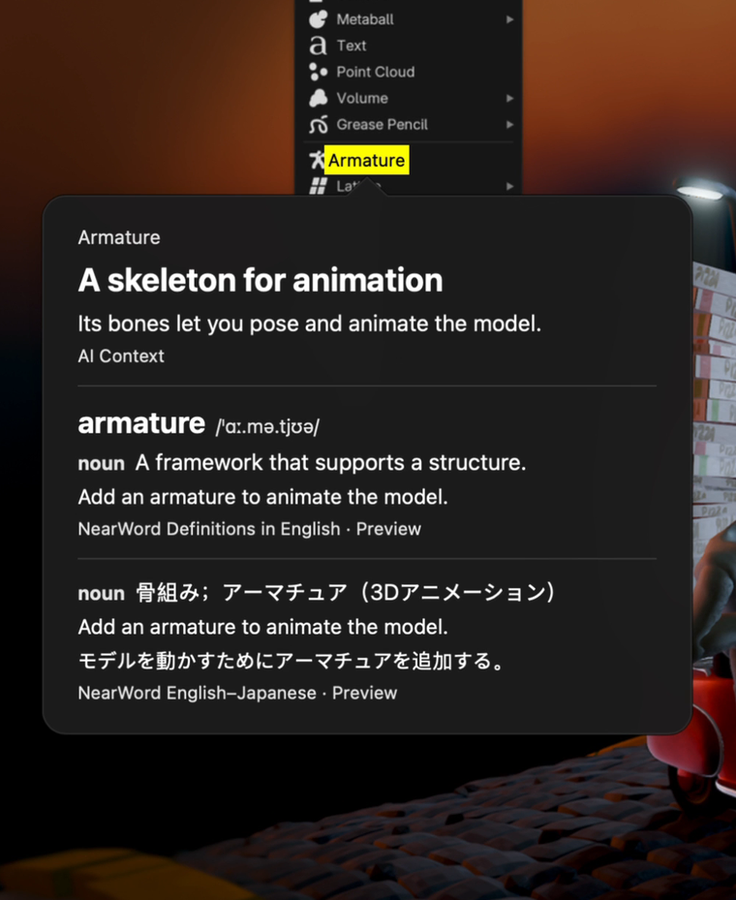
Armature: a skeleton for the model
In Blender’s Add menu, Armature means a skeleton made of bones. Those bones let you pose and animate a model once its mesh is connected to them.
Outside 3D software, an armature is a supporting framework. The dictionary gives this general meaning, while AI Context explains its use in Blender.
A familiar word can mean something else here
“Mask” in an image editor is not the same idea as a face covering. Before looking it up, leave the tooltip open if there is one: a short description gives you more to work with than the label alone. Check the recognized text, then read the explanation against what the panel actually does.
For buttons such as Apply or Reset, understanding the word is only the first step. The app decides which settings will change and whether you can undo them. NearWord can help you read the message. It doesn’t inspect the app’s state or operate its controls.
Your app stays as it is
NearWord doesn’t change the app’s language or automatically translate its menus. It helps with text on screen. For the exact behavior of a setting, check the app’s documentation: translating its name isn’t a substitute for instructions.
Try NearWord
Available on macOS. Downloaded dictionaries work offline without an account. AI Context is optional and needs an account and internet access.
Download NearWord