 NearWord
How to use NearWord
Set up NearWord and make your first lookup.
On this page
Get started
Set up offline lookup. No account needed.
macOS
Install NearWord
Download NearWord and open the
.dmg. Drag NearWord to Applications, then open it.Allow screen access
Enable Accessibility and Screen Recording when prompted. Check permissions.
macOS permissions
Open System Settings → Privacy & Security and enable NearWord in both places:


Restart NearWord after changing permissions. On newer macOS, look for Screen & System Audio Recording.
On macOS, you can also Force Click a word on a compatible trackpad.
Set up Lookup
In Lookup, choose your languages, then Add dictionary. Install more from Dictionary Library if needed.
Look up a word
In another app, point at a word and press ⌥ ⇧ S. Press Esc to close the result.
Languages & dictionaries
Choose your reading and translation languages, then add your dictionaries.
- I’m reading
- The language you’re reading.
- Translate to
- Your AI translation language.
Add an offline dictionary
- Install a dictionary from Dictionary Library.
- Open Lookup → Add dictionary and select it.
- Drag dictionaries to change their order.
After downloading, add the dictionary in Lookup to use it.
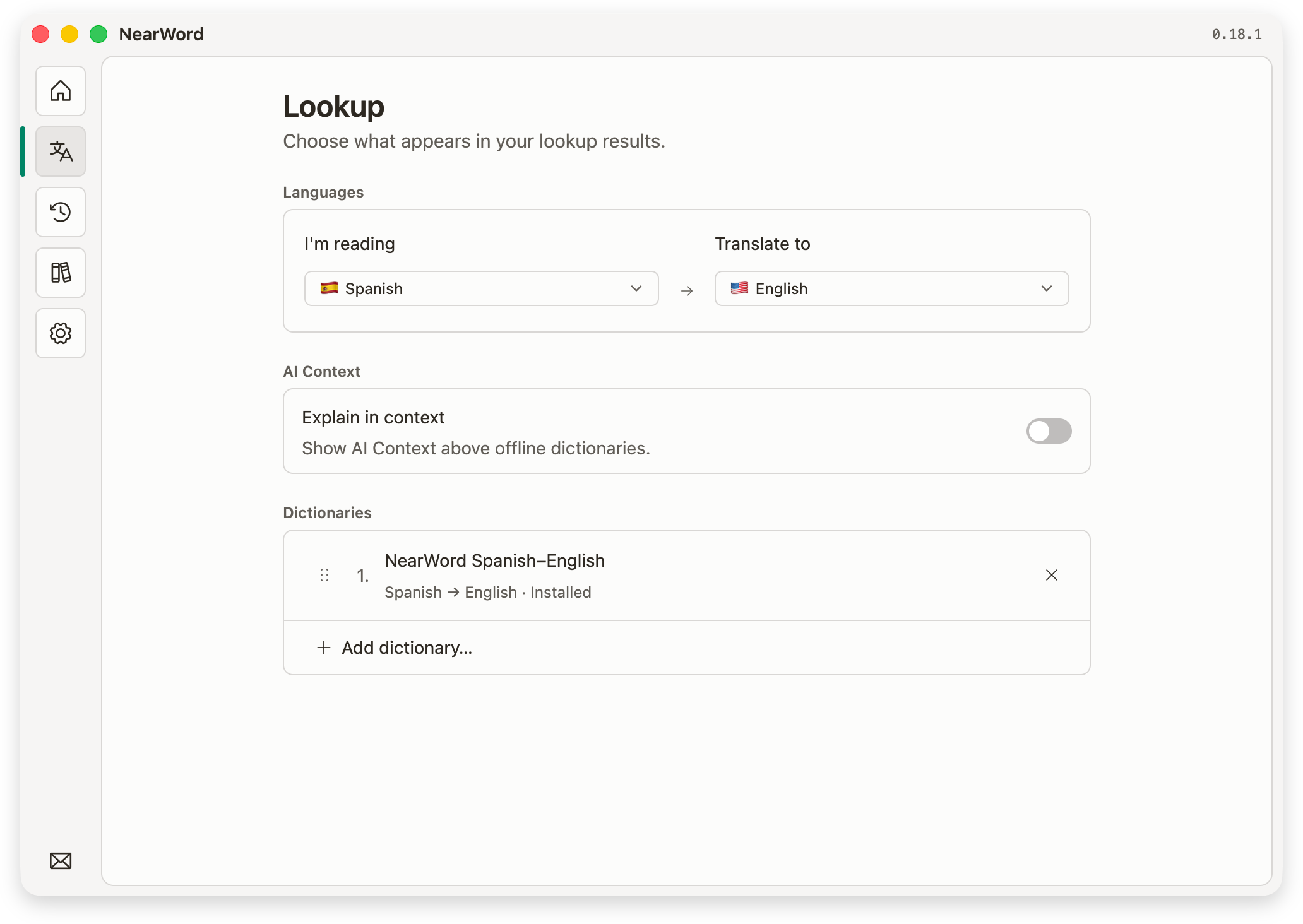
Removing a dictionary from Lookup hides its results. To free up space, delete it from Dictionary Library.
Downloaded dictionaries work offline.
Look up a word
Point at visible text and press your shortcut. No selecting or copying first.
Pause videos before looking up subtitles. Zoom in if the text is small or blurry.
Read and use the result
AI Context appears first when enabled, then your dictionaries. Expand entries for more meanings.
- Close the result
- Press Esc, click outside it or switch apps.
- Copy an answer
- With Native lookup enabled on macOS, press ⌘ + C to copy selected text from the result panel. With nothing selected, it copies the AI Context answer or the main dictionary definition.
- Find it again
- Open History to revisit the word and its screenshot.
No result? Check your dictionaries or try the troubleshooting steps.
Use AI Context
Get the meaning that fits the sentence, including idioms and phrases.
- Sign in to NearWord.
- Open Lookup and turn on AI Context.
- Check I’m reading and Translate to, then look up a word.
Looking up “down” in “She turned down the offer” can explain “turned down” as “declined.”
AI Context needs internet. Turn it off for dictionary-only lookups. Free accounts include an allowance, and Pro supports unlimited everyday use. Compare Free and Pro.
AI Context sends recognized text and any available crop to NearWord and Cloudflare Workers AI. NearWord retains requests and answers in server history and logs; AI history has no automatic expiry. What is sent and stored.
History & export
Revisit past lookups or take your words to Anki and other tools.
In History, search by word or filter by date, source app or language.
Select a lookup to reopen its answers and full-screen screenshot. History stays on this device.
Export your history
Choose Export all in History and select a format:
- Anki
- Open the
.apkgdeck in Anki to review your words. - CSV
- A table you can open in a spreadsheet.
- JSON
- Structured lookup data for your own tools.
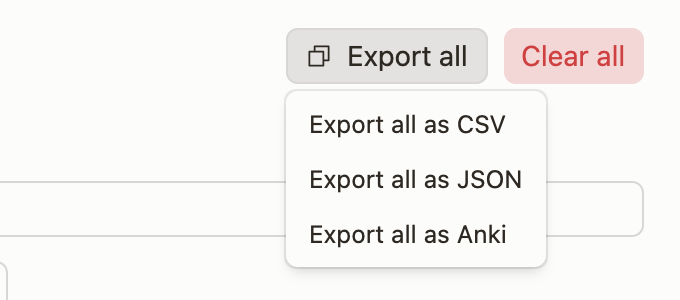
Export all includes your full history, even when the list is filtered.
Delete lookups
Open an entry to delete it. Clear all removes your entire history, not just the filtered results. Export anything you want to keep first.
Settings & updates
Adjust how NearWord works and keep it up to date.
- Change the shortcut
- In Settings → Shortcut, choose Record shortcut and press your new combination. Use one that another app doesn’t already use.
- Change the appearance
- Choose System, Light or Dark in Settings → Appearance. System follows your operating system.
- Choose the lookup window
- Native lookup uses the system-style result panel. Turn it off to use NearWord’s own window for your next lookup.
Update NearWord
NearWord checks for updates at startup. You can also check in Settings → About.
Choose Install and restart when an update is available. If you choose Later, the update remains available in Settings. See what’s new.
Reset & uninstall
Start fresh or remove NearWord from your device.
Remove local data
In Settings, choose Reset… under Reset NearWord, then confirm.
Export your history first. Reset signs you out and deletes settings, history, screenshots and downloaded dictionaries.
Reset does not delete your online account, cancel Pro or remove macOS permissions. Manage those in Account, Billing and System Settings.
Local settings, history and dictionaries are stored here:
~/Library/Application Support/dev.grishy.nearword/
Uninstall on macOS
Quit NearWord, then move it from Applications to the Trash. Use Reset first to also delete local data.